Python Script for Deleting Old Files from S3 Bucket

I had a requirement to delete about 68,0000 files from multiple folders in an S3 bucket. This Python script automates the process of deleting old files from an Amazon S3 bucket based on pattern matching of the name of the folder/file. It connects to the S3 bucket, identifies files older than a specified timeframe, and deletes them while keeping a detailed audit trail. Here’s a breakdown of the script:

1. Setting Up:

  • The script imports the necessary modules: datetime for date manipulation, boto3 for interacting with S3, and timedelta for time calculations.
  • It defines variables for bucket name, prefix, file paths for storing S3 file names and files to be deleted, and the target file pattern for identification.

2. Gathering Files from S3:

  • A connection is established to S3 using boto3.
  • The list_objects_v2 paginator retrieves all files under the specified bucket and prefix. If you do not use this logic, only the first 1000 files will be listed.
  • The script iterates over each page and extracts the file names, storing them in a text file (files_in_s3).
  • A timestamp is recorded to indicate the completion of this stage.

3. Identifying Files for Deletion:

  • The script calculates the date two months ago using timedelta and datetime.
  • It iterates through the list of files from S3 and checks if they:
    • Start with the specified pattern (my-file-name-pattern).
    • Contain the two-month-ago date (yy_months_ago) in their name.
  • If both conditions are met, the file name is written to another text file (files_to_delete) for deletion.
  • A timestamp and a count of files marked for deletion are printed.

4. Deleting Identified Files:

  • The script iterates through the list of files to be deleted.
  • For each file, it extracts the folder and region information.
  • It checks if the current folder or region is different from the previous one. If yes, it prints a timestamp indicating the start of deletion for that specific folder/region.
  • The script then uses the delete_object function to remove the file from the S3 bucket.

5. Completion and Audit Trail:

  • A final timestamp marks the completion of file deletion.
  • The script prints “End of program” as a closing message.

Benefits:

  • Automates deletion of old files, reducing storage costs and improving data management.
  • Maintains an audit trail of files identified for deletion and their removal timestamps.
  • Customizable to different bucket configurations and deletion criteria.

Note:

  • This script assumes the necessary AWS credentials are configured for accessing S3 resources.
  • Modify the script parameters like bucket name, prefix, pattern, and file paths as needed for your specific scenario.

This script provides a comprehensive and efficient way to manage and delete old files in your S3 bucket, ensuring optimal storage utilization and data governance.

Code:

from datetime import datetime, timedelta
import boto3

now = datetime.now()
print(f"Starting at : {now}")
print(' ')

#
## Bucket details
#
bucket_name = 'my-bucket'
bucket_prefix = 'my-prefix/'
files_in_s3 = 'C:/dean/python/s3_list.txt'
files_to_delete = 'C:/dean/python/s3_delete.txt'

#
## Connect to S3 and get the file names
#
s3 = boto3.client('s3')
paginator = s3.get_paginator('list_objects_v2')
page_iterator= paginator.paginate(Bucket=bucket_name, Prefix=bucket_prefix)
with open(files_in_s3, 'w') as f:
    for page in page_iterator:
        contents = page.get('Contents', [])
        for item in contents:
            f.write(item['Key'] + '\n')  
now = datetime.now()
print(f"Collected files from S3 at {now}")
print(' ')

#
## find the n-2 month
#
n_months_ago = datetime.now() - timedelta(days=60)
yy_months_ago = n_months_ago.strftime('%Y/%m')
print(f"Deleting files for {yy_months_ago}")
print(' ')

#
## Write the files to be deleted to an audit trail
#
file_ctr = 0
file_out= open(files_to_delete, 'w')
with open(files_in_s3, 'r') as f:
    for line in f:
        file_name = line.strip()
        if  file_name.startswith('my-file-name-pattern'):
            if  yy_months_ago in file_name:
                file_out.write(file_name + '\n')
                file_ctr = file_ctr + 1
now = datetime.now()
print(f"Identified files to delete at {now}")
temp = 'Number of files to delete ' + str(file_ctr)                
print(temp)
print(' ')
file_out.close()

#
## Delete the files
#
prev_folder = ''
prev_region = ''
with open(files_to_delete, 'r') as f:
    for line in f:
        cur_folder = line.split('/')[3]
        cur_region = line.split('/')[4]
        if cur_folder != prev_folder or cur_region != prev_region:
            now = datetime.now()
            print(f"Deleting files from {cur_folder}/{cur_region} at {now}")
            prev_folder = cur_folder
            prev_region = cur_region
        file_name = line.strip()
        s3.delete_object(Bucket=bucket_name, Key=file_name)
print(' ')
now = datetime.now()
print(f"Completed file deletion at {now}")
print(' ')
print('End of program')


Amazon CodeWhisperer demo

I have recently begun using Amazon CodeWhisperer and am continually impressed by its ability to save me time by automating typing, reducing syntax lookup, and error reduction. The tool is available for multiple IDEs, including Visual Studio Code and PyCharm, and supports multiple languages, such as Python, Java, and C#. I have been using it for Python in Visual Studio Code.

The first step is to add the AWS Toolkit extension to VS Code:


The next step is to sign up for CodeWhisperer, using a personal email address. The product is free for individual use with unlimited code suggestions. The extension exchanges a code with an Amazon website to enable the product to run. After this brief sign-up process, you are ready to go.

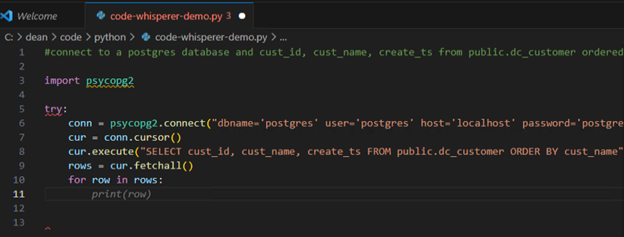
For example, to create a Python program to select data from a Postgres table, I provided the following comment line:

#connect to a postgres database and cust_id, cust_name, create_ts from public.dc_customer ordered by cust_name

and hit the enter key at the end of the command line. CodeWhisperer starts suggesting the required lines of code such as “import psycopg2”, “try:” etc.

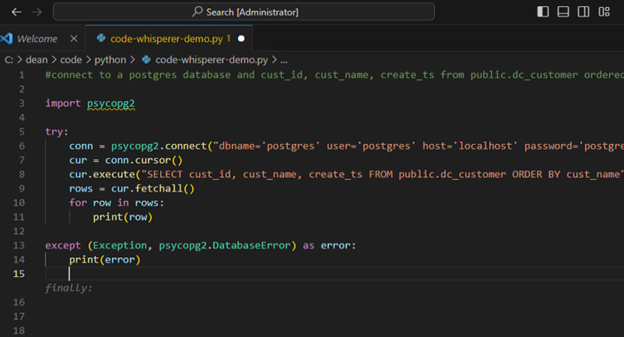
Each suggestion shows up in grey text and if you want to accept the suggestion, use the tab key and it will be converted to code with the proper highlighting and indentation.

I continued to accept the suggestions in the next few screenshots:

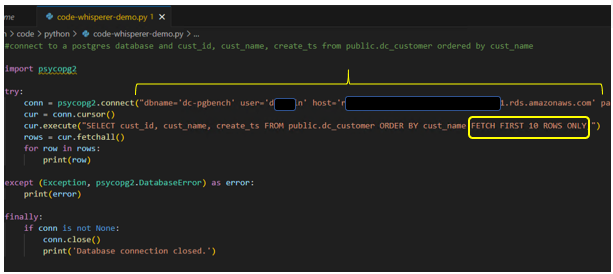
After the “finally” block, all of the logic requested in the first comment line was in place. I made two changes to the code created by CodeWhisperer; added in the dbname, host, password etc. and added “FETCH FIRST 10 ROWS ONLY”.

The code executed without any errors:

Complete details on Amazon CodeWhisperer can be found on this page.


Sharing an AWS customer managed KMS key between accounts

My client had a requirement to clone an Aurora database from the production account to a test account. In adherence to standard security practices, the production Aurora instance was configured with encryption utilizing a customer-managed Key Management Service (KMS) key. To enable the successful cloning of the database into the test account, a prerequisite step is to share the KMS key from the production account with the test account.

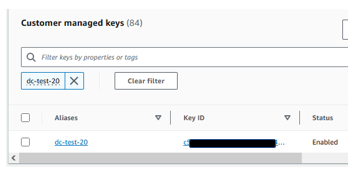
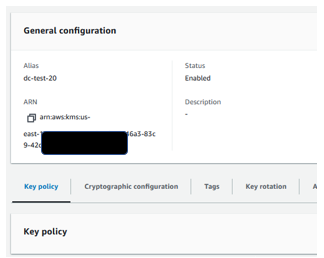
If the key was created via the console, we can navigate to the KMS page and filter for the key as shown below:


If you click on the Alias and then the Key Policy tab and scroll down


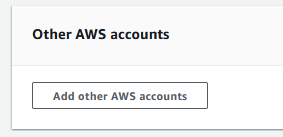
there is an option to add other AWS account


However, keys created via a cloud formation template such as below:

Resources:
  #
  ## Create a key
  #
  rCreateDBKMSCMK:
    Type: AWS::KMS::Key
    DeletionPolicy: Retain
    Properties:
      KeyPolicy:
        Version: '2012-10-17'
        Statement:
        - Effect: Allow
          Principal:
            AWS: 'arn:aws:iam::111111111121:root'
          Action: 'kms:*'
          Resource: '*'
      Tags:
      - Key: Name
        Value: dc-test-key-03
  #
  ## Create an alias for the key
  #
  rCreateDBKMSCMKAlias:
    Type: 'AWS::KMS::Alias'
    DeletionPolicy: Retain
    Properties:
      AliasName: 'alias/dc-test-key-03-alias'
      TargetKeyId: !Ref rCreateDBKMSCMK

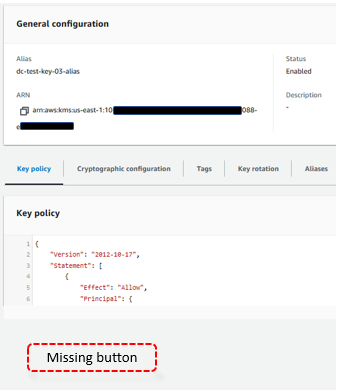
lack the add other AWS account button:


In order to allow sharing, the below needs to be added to the key’s policy.

  • In this example, account 101010101010 is the key owner and is sharing the key with account 707070707070.
  • Typically the key policy will already contain permissions similar to the code in black. The code in red is needed to enable the share.
  • In this example, I am sharing with the root account. This can be changed as per your security requirements.
{
    "Version": "2012-10-17",
    "Statement": [
        {
            "Effect": "Allow",
            "Principal": {
                "AWS": "arn:aws:iam::101010101010:root"
            },
            "Action": "kms:*",
            "Resource": "*"
        },
        {
            "Effect": "Allow",
            "Principal": {
                "AWS": "arn:aws:iam::707070707070:root"
            },
            "Action": [
                        "kms:Encrypt",
                        "kms:Decrypt",
                        "kms:ReEncrypt*",
                        "kms:GenerateDataKey*",
                        "kms:DescribeKey"
                      ],
            "Resource": "*"
        },
        {
            "Sid": "Allow attachment of persistent resources",
            "Effect": "Allow",
            "Principal": {
                "AWS": "arn:aws:iam::707070707070:root"
            },
            "Action": [
                "kms:CreateGrant",
                "kms:ListGrants",
                "kms:RevokeGrant"
            ],
            "Resource": "*",
            "Condition": {
                "Bool": {
                    "kms:GrantIsForAWSResource": "true"
                }
            }
        }
    ]
}

After the above policy change has been made, the key will be shared with the other account. This can be verified by signing on to the 707070707070 account and issuing the below command to describe the key:

aws kms describe-key --key-id=arn:aws:kms:us-east-1:101010101010:key/6897


Testing online COBOL environments

I often use web-based environments, to test the syntax of particular statements in programing languages. As a fun challenge, I decided to see if I could find a web-based environment to test COBOL code. I was expecting this to be an impossible quest because; “why would you?” 😊

After trying a couple of sites, I landed on tutorials point’s web site:
Tutorialspoint online COBOL compiler

Using this website, I was able to write a simple COBOL program to reverse a string. Some of the key concepts used are
a. PERFORM VARYING
b. One dimensional table
c. Reference modification, aka COBOL speak for substring

Below is a screen shot of the web interface. The source code is displayed in the left panel. When you press the execute button, the right panel is a terminal that accepts input and displays output.

Occasionally the web interface displays its true unix/php identity with a message such as:

This can be remediated by putting the string in quotes as shown below:

The complete source code in text is below:

IDENTIFICATION DIVISION.
PROGRAM-ID. REVERSESTRING.

DATA DIVISION.

WORKING-STORAGE SECTION.
01  GENERAL-VARIABLES.
    05  WS-ORIGINAL-TXT           PIC X(100).
    05  WS-REVERSE-TXT-TABLE.
        10  WS-REVERSE-TXT-ITEM   PIC X(1) OCCURS 100 TIMES.
    05  WS-I                      PIC S9(3)  USAGE IS COMP-3 VALUE 0.
    05  WS-J                      PIC S9(3)  USAGE IS COMP-3 VALUE 0.
    05  WS-TEMP                   PIC X(01).
    05  WS-ORIG-TXT-LEN           PIC S9(3)  USAGE IS COMP-3.

PROCEDURE DIVISION.
    DISPLAY "Enter a string to reverse: "
    ACCEPT WS-ORIGINAL-TXT

    PERFORM VARYING WS-I FROM 100 BY -1 UNTIL ( WS-I = 1 OR WS-TEMP <> ' ')
            MOVE WS-ORIGINAL-TXT(WS-I:1) TO WS-TEMP
    END-PERFORM
    COMPUTE  WS-ORIG-TXT-LEN = WS-I + 1
    DISPLAY "You entered    : " WS-ORIGINAL-TXT(1:WS-ORIG-TXT-LEN)

    PERFORM VARYING WS-I FROM WS-ORIG-TXT-LEN BY -1 UNTIL (WS-I = 0)
            COMPUTE WS-J = WS-J + 1
            MOVE WS-ORIGINAL-TXT(WS-I:1) TO  WS-REVERSE-TXT-ITEM(WS-J)
    END-PERFORM
    
    DISPLAY "Reverse string : " WS-REVERSE-TXT-TABLE
    
    STOP RUN.

Load testing with pgbench

Introduction

PostgreSQL is renowned for its robustness and reliability, making it a go-to choice for a wide range of applications. To ensure your PostgreSQL database performs at its best, benchmarking is a crucial step in the process. In this blog post, I will delve into the powerful capabilities of pgbench, a versatile tool for running benchmark tests on PostgreSQL.

Out of the box, pgbench uses a scenario loosely based on TPC-B, running a sequence of five SELECT, UPDATE, and INSERT commands per transaction. While this default scenario provides valuable insights into your system’s performance, there are cases where more specialized testing is necessary.

In this blog, I will explore the art of crafting customized benchmarks using specific tables and SQL statements. This approach enables you to tailor your benchmark to the unique demands of your application, ensuring your PostgreSQL database is optimized for real-world workloads.

Create an EC2

Create an Amazon EC2 running Amazon Linux. These instructions use an Instance type of t2.2xlarge with the below configuration:

cat /etc/image-id
image_name="al2023-ami"
image_version="2023"
image_arch="x86_64"
image_file="al2023-ami-2023.2.20231016.0-kernel-6.1-x86_64.xfs.gpt"
image_stamp="f733-4bf8"
image_date="20231016220519"
recipe_name="al2023 ami"
recipe_id="ed84f07e-e06c-a3cd-759b-d254-59e2-3d69-b61eb10b"

Please note that amazon-linux-extras is not available for Amazon Linux 2023.

Install postgresql15

Install postgresql15 with the following command

sudo yum install postgresql15

The output will be similar to:

sudo yum install postgresql15
Last metadata expiration check: 0:11:01 ago on Mon Oct 23 16:46:45 2023.
Dependencies resolved.
Package                                                  Architecture                          Version                                             Repository                                  Size
.
.
Lines omitted for brevity
.
.
  Verifying        : postgresql15-private-libs-15.0-1.amzn2023.0.4.x86_64                                                                                                                        2/2

Installed:
  postgresql15-15.0-1.amzn2023.0.4.x86_64                                                    postgresql15-private-libs-15.0-1.amzn2023.0.4.x86_64

Complete!

Install postgresql-contrib package

This package contains various extension modules that are included in the PostgreSQL distribution including pgbench. Install the package with the following command:

sudo yum install postgresql15-contrib

The output will be similar to:

sudo yum install postgresql15-contrib
Last metadata expiration check: 0:32:28 ago on Mon Oct 23 16:46:45 2023.
Dependencies resolved.
.
.
Lines omitted for brevity
.
.
  Verifying        : uuid-1.6.2-50.amzn2023.0.2.x86_64                                                                                                                                           3/3

Installed:
  libxslt-1.1.34-5.amzn2023.0.2.x86_64                          postgresql15-contrib-15.0-1.amzn2023.0.4.x86_64                          uuid-1.6.2-50.amzn2023.0.2.x86_64

Complete!

Verify that pgbench has been installed:

which pgbench

Output:

/usr/bin/pgbench

Create a working directory/folder

Create a working directory for pgbench related artifacts

mkdir pgbench; cd pgbench

Create a database for pgbench

For the purpose of this testing, I will be creating a new database named pg-bench. Log on as the RDS administrator and run the below commands:

CREATE DATABASE "dc-pgbench"
    WITH
    OWNER = dbadmin
    ENCODING = 'UTF8'
    LC_COLLATE = 'en_US.UTF-8'
    LC_CTYPE = 'en_US.UTF-8'
    TABLESPACE = pg_default
    CONNECTION LIMIT = -1
    IS_TEMPLATE = False;

Connect to this new database and create a user for pgbench with the following commands:

create user dcpgbench with encrypted password 'mypassword';
grant all privileges on database "dc-pgbench" to dcpgbench;

Confirm connectivity to the Postgres RDS instance

In the pgbench directory, create the below file to facilitate logging on to the database without having to type a long command:

Edit a file

vi psql.ksh

Enter the below commands after modifying for your instance:

export PGB_HOST=red-primary-writer.xxxxx.us-east-1.rds.amazonaws.com
export PGB_PORT=5432
export PGB_DB=dc-pgbench
export PGB_USER=dcpgbench
PGPASSWORD=mypassword psql --host=$PGB_HOST --port=$PGB_PORT --username=$PGB_USER --dbname=$PGB_DB

Change permissions

chmod u+x psql.ksh

Test connectivity

./psql.ksh

If successful, the connection will look like:

psql (15.0, server 14.6)
SSL connection (protocol: TLSv1.2, cipher: AES128-SHA256, compression: off)
Type "help" for help.

dc-pgbench=> SELECT current_database();
 current_database
------------------
 dc-pgbench
(1 row)

dc-pgbench=>

I also issued the command

SELECT current_database();

To confirm that I am connected to the correct database.

Create a data structures that will be used to stress test the database instance

I will be using the below structures to create a load on the database. The workload will be executed by user dcpgbench.

Sequences for keys

The below sequences will be used to generate customer, order and, item data respectively:

CREATE SEQUENCE if not exists dc_cust_id
INCREMENT 1
START 1
MINVALUE 1
MAXVALUE 9223372036854775807
CACHE 1;

CREATE SEQUENCE if not exists dc_order_id
INCREMENT 1
START 1
MINVALUE 1
MAXVALUE 9223372036854775807
CACHE 1;

CREATE SEQUENCE if not exists dc_item_id
INCREMENT 1
START 1
MINVALUE 1
MAXVALUE 9223372036854775807
CACHE 1;

GRANT USAGE ON SEQUENCE dc_cust_id TO dcpgbench;
GRANT USAGE ON SEQUENCE dc_order_id TO dcpgbench;
GRANT USAGE ON SEQUENCE dc_item_id TO dcpgbench;

Tables

The below tables will store customer, items and order data respectively:

CREATE TABLE dc_customer
(
  cust_id      BIGINT                         NOT NULL,
  cust_name    VARCHAR(60)                    NOT NULL,
  create_ts    timestamp(0) without TIME zone NOT NULL,
  CONSTRAINT   dc_cust_pk PRIMARY KEY (cust_id)
)
;

CREATE TABLE dc_item
(
  item_id      BIGINT                         NOT NULL,
  item_name    VARCHAR(60)                    NOT NULL,
  create_ts    timestamp(0) without TIME zone NOT NULL,
  CONSTRAINT   dc_item_pk PRIMARY KEY (item_id)
)
;

CREATE TABLE dc_order
(
  order_id     BIGINT NOT NULL,
  cust_id      BIGINT NOT NULL references dc_customer (cust_id),
  item_id      BIGINT NOT NULL references dc_item (item_id),
  quantity     BIGINT NOT NULL,
  create_ts    timestamp(0) without TIME zone NOT NULL,
  CONSTRAINT   dc_order_pk PRIMARY KEY (order_id)
)
;

GRANT SELECT, INSERT, UPDATE, DELETE 
ON dc_customer, dc_item, dc_order
TO dcpgbench
;

Load test 01 – Write intensive

I will be using the below script to perform a load test. At a high level, this test will create data in our three tables simulating writes. This data will then be used in a later script to simulate read intensive data.

Command to execute the script
Execute the script with the below command

nohup ./load-test-01.ksh > load-test-01.out 2>&1 &

Contents of the script
Below are the contents of the script with comments on each line of code

#!/bin/bash

#
## database endpoint
#
export PGB_HOST=red-primary-writer.xxxxx.us-east-1.rds.amazonaws.com
#
## database port
#
export PGB_PORT=5432
#
## bench mark database
#
export PGB_DB=dc-pgbench
#
## The user name to connect as
#
export PGB_USER=dcpgbench
#
## Number of clients simulated, that is, number of concurrent database sessions
#
export PGB_CLIENTS=50
#
## Number of worker threads within pgbench
#
export PGB_THREADS=20
#
## filename containing the SQLs to be executed
#
export PGB_SQL_FILE=load_test_01.sql
#
## Run the test for this many seconds
#
export PGB_RUN_TIME=300
#
## Set the filename prefix for the log files created by --log
#
export PGB_LOG_PREFIX=dc-pgb
#
## Sampling rate, used when writing data into the log, to reduce the
## amount of log generated. 1.0 means all transactions will be logged,
## 0.05 means only 5% of the transactions will be logged
#
export PGB_SAMPLE_RATE=0.05
#
## make sure we are in the correct directory
#
cd /home/ec2-user/pgbench
#
## run the test
#
PGPASSWORD=mypassword pgbench --client=$PGB_CLIENTS --jobs=$PGB_THREADS --time=$PGB_RUN_TIME --username=$PGB_USER -d $PGB_DB --host=$PGB_HOST --port=$PGB_PORT --file=$PGB_SQL_FILE --log --log-prefix
=$PGB_LOG_PREFIX --sampling-rate=$PGB_SAMPLE_RATE --no-vacuum

Contents of the SQL to generate write activity
The following SQL commands will be executed to generate some load on the database. These SQL statements will be saved in file named load_test_01.sql which will be referenced by the script named load-test-01.ksh.

--
--get the next sequence value for the order id and 
--item id
--
SELECT nextval('dc_cust_id') \gset cust_id_
SELECT nextval('dc_item_id') \gset item_id_
--
--Create a random value from the MMSS of the current 
--timestamp to be used as an order quaintity
--
SELECT cast(substring(TO_CHAR(CURRENT_TIMESTAMP, 'YYYY-MM-DD HH12:MMSS') from 15 for 4) as int) as order_qty \gset
--
--Insert a row into the customer table
--
INSERT
INTO   dc_customer
(
  cust_id,
  cust_name,
  create_ts
)
values
(
    :cust_id_nextval,
     concat('cust-',CURRENT_TIMESTAMP),
     CURRENT_TIMESTAMP
)
;
--
--Insert a row into the item table
--
INSERT
INTO   dc_item
(
  item_id,
  item_name,
  create_ts
)
values
(
    :item_id_nextval,
     concat('item-',CURRENT_TIMESTAMP),
     CURRENT_TIMESTAMP
)
;
--
--Insert a row into the order table
--
INSERT
INTO   dc_order
(
  order_id,
  cust_id,
  item_id,
  quantity,
  create_ts
)
values
(
     nextval('dc_order_id'),
    :cust_id_nextval,
    :item_id_nextval,
    :order_qty,
     CURRENT_TIMESTAMP
)
;

Load test 02 – Read intensive

I will be using the below script to perform a read load test. At a high level, this test will perform multiple reads on our three tables. The previous test has written approximately 150,000 rows to our three test tables.

Command to execute the script
Execute the script with the below command

nohup ./load-test-02.ksh > load-test-02.out >2&1 &

Contents of the script
Below are the contents of the script with comments on each line of code

#!/bin/bash

#
## database endpoint
#
export PGB_HOST=red-primary-writer.xxxxx.us-east-1.rds.amazonaws.com
#
## database port
#
export PGB_PORT=5432
#
## bench mark database
#
export PGB_DB=dc-pgbench
#
## The user name to connect as
#
export PGB_USER=dcpgbench
#
## Number of clients simulated, that is, number of concurrent database sessions
#
export PGB_CLIENTS=200
#
## Number of worker threads within pgbench
#
export PGB_THREADS=20
#
## filename containing the SQLs to be executed
#
export PGB_SQL_FILE=load_test_02.sql
#
## Run the test for this many seconds
#
export PGB_RUN_TIME=300
#
## make sure we are in the correct directory
#
cd /home/ec2-user/pgbench
#
## run the test
#
PGPASSWORD=mypassword pgbench --client=$PGB_CLIENTS --jobs=$PGB_THREADS --time=$PGB_RUN_TIME --username=$PGB_USER -d $PGB_DB --host=$PGB_HOST --port=$PGB_PORT --file=$PGB_SQL_FILE --no-vacuum

Contents of the SQL to generate read activity
The plan for this script is to select random data from our three tables. These SQL statements will be saved in file named load_test_01.sql which will be referenced by the script named load-test-01.ksh .

First, I establish the current value of the sequences with the below SQLs:

SELECT last_value FROM dc_cust_id;
SELECT last_value FROM dc_item_id;
SELECT last_value FROM dc_order_id;

Each of the sequences is current at a value of approximately 151,000 and hence I will use 150,000 as the upper range in the below random function.

SELECT floor(random()*(150000)) as dc_cust_id \gset
--
--select the orders
--
select 
            cus.cust_id 
           ,cus.cust_name 
           ,itm.item_id 
           ,itm.item_name 
           ,ord.order_id 
           ,ord.quantity 
           ,ord.create_ts 
from        dc_order ord
inner join  dc_customer cus
        on  cus.cust_id = ord.cust_id 
inner join  dc_item itm
        on  itm.item_id = ord.item_id 
where       cus.cust_id = :dc_cust_id
order by 
            cus.cust_id 
           ,ord.create_ts 
;

Monitoring the activity – Performance Insights

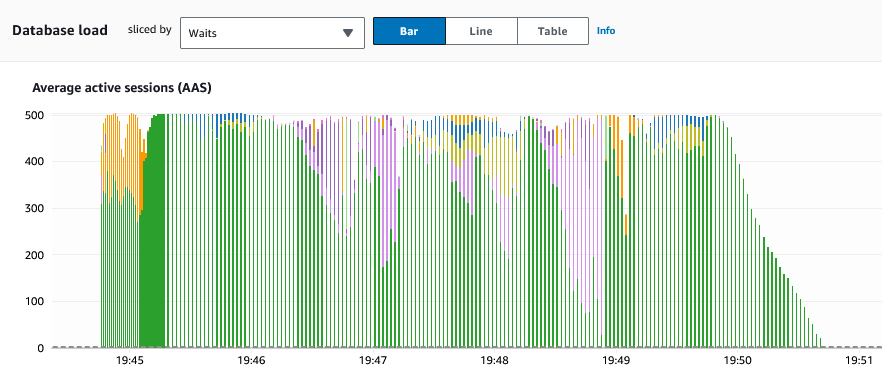
The impact of the test can be measured by Performance Insights. I ran a test with PGB_CLIENTS set to 500 users for a period of 5 minutes. The Average active sessions (AAS) displayed this spike in Performance insights as a result of the load placed on the database:
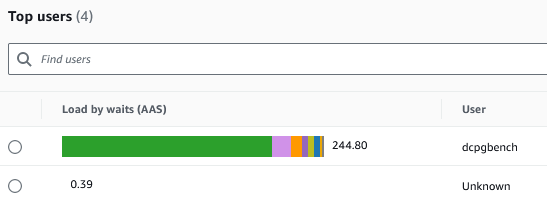
As expected the top user was dcpgbench, the user running the workload:
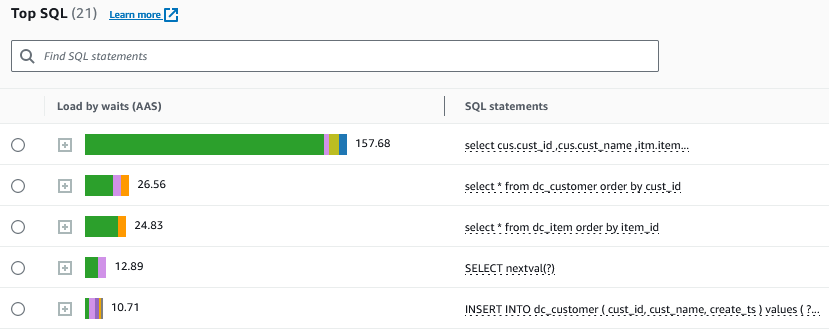
The top SQLs reported by Performance Insights also list the SQL statements that I was executing

Create a Lambda alerting process

Introduction

The goal is to create a lambda that runs once a day and sends an alert on all EC2 instances that are currently configured in all regions for a given account. The solution consists of

  1. A role to provide permissions
  2. An SNS topic that can be subscribed to by users who wish to be notified
  3. A lambda written in python to identify the EC2 instances
  4. A scheduling process consisting of an EventBridge rule and an EventBridge trigger

Create the role

Navigate to the IAM Dashboard and click on “Roles” in the left panel

  1. Click on the orange “Create role” button
  2. Select “AWS service” under the “Trusted entity type”
  3. Select “Lambda” under the “Use case”
  4. Under the “Permissions policies” search for “AWSLambdaBasicExecutionRole” and select it
  5. Click on the orange “Next” button
  6. Provide a “Role name” and meaningful “Description”

Click on the orange “Create role” button. We will be modifying the role later to add more permissions.

Return to the IAM Roles dashboard and search for the role as we have to add two more permissions

  1. Click on the “Role name” and then on “Add permissions”, “Attach policies” on the next page
  2. On the next page, add the “AmazonEC2ReadOnlyAccess” and then repeat to add the
  3. “AmazonSNSFullAccess” policies.

The role creation is now complete.

Create the SNS topic

To demonstrate the AWS Command Line Interface (CLI), we will create the topic via a CLI command rather than the console. The AWS CLI command can be executed either from an EC2 instance with the required permissions or from cloud shell.I will be using cloud shell as it does not require any setup. The command is as follows

aws sns create-topic --name dc-running-assets-sns-topic

The output will display the ARN of the SNS topic. Save the ARN as it will be needed later.

Navigate to the “Amazon SNS” “Topics” dashboard and search for the SNS topic with the name from the above create command. Click on the “Name” and then on the orange “Create subscription” button on the next page. On the next page, populate the “Protocol” as “Email” and the “Endpoint” with your email address and click on the orange create subscription button

You will receive an email requesting you to confirm subscription. After you click on the “Confirm subscription” link, you will be taken to the subscription confirmation webpage. This can also be confirmed by returning to the SNS dashboard and checking the subscriptions. Additionally, you will receive a subscription confirmation email.

Create the lambda function in python

Navigate to the Lambda functions page in the console and click on the orange “Create function” button.

  1. On the “Create function” web page
  2. Select the “Author from scratch” option
  3. Populate the “Function name”. I will use dc-running-assets-lambda
  4. Select Python 3.9 under the “Runtime” drop down
  5. Select x86_64 under “Architecture”
  6. Under the “Change default execution role”
  7. Select “Use an existing role”
  8. Populate the role created above in the “Existing role” drop down

Finally click on the orange “Create function” button

On the next page, click on the “Code” tab if not already selected and replace the prepopulated code with the code below after making the following modifications

  1. Replace the sns_topic_arn variable with the arn of the SNS topic created earlier
  2. Comment or uncomment the lines with comments “Running instances only” or “All instance” depending on your use case
  3. The “import os” is in place in the even you need to debug with the use of print statements
import boto3
import os

def lambda_handler(event, context):
    
    sns_topic_arn = 'arn:aws:sns:us-east-2:xxxxx:dc-running-assets-sns-topic'
    
    ec2_regions = [region['RegionName'] for region in boto3.client('ec2').describe_regions()['Regions']]
    all_instances = []
    
    for region in ec2_regions:
        all_instances.append(' ')
        all_instances.append(f"**** Region: {region} ***")
        
        ec2 = boto3.client('ec2', region_name=region)

        # Running instances only
        #response = ec2.describe_instances(Filters=[{'Name': 'instance-state-name', 'Values': ['running']}])
        
        # All instances
        response = ec2.describe_instances()
        
        for reservation in response['Reservations']:
            for instance in reservation['Instances']:
                instance_id = instance['InstanceId']
                instance_state = instance['State']['Name']
                instance_type = instance['InstanceType']
                private_ip = instance['PrivateIpAddress']
                all_instances.append(f"Region: {region}, Inst. ID: {instance_id}, State: {instance_state}, Type: {instance_type}, Prvt. IP: {private_ip}")

    if all_instances:
        sns = boto3.client('sns')
        message = "List of EC2 Instances:\n" + '\n'.join(all_instances)
        sns.publish(TopicArn=sns_topic_arn, Subject="List of EC2 Instances", Message=message)
    
    return {
        'statusCode': 200,
        'body': 'Email sent successfully'
    }

After pasting the code, click on the “Deploy” button and the “Changes not deployed” message will be removed.

Configuring timeouts

Lambda functions are created with a default timeout of 3 seconds. This particular lambda needs approximately 45 seconds to execute as it loops through all the regions and all the EC2 in each region hence we need to increase the default timeout. This is accomplished as follows:

  1. Select the “Configuration” tab to the right of the “Code” tab and click on “General configuration”
    Click on the “Edit” button
  2. On the “Edit basic settings” page, enter the following
  3. I added a description in the “Description – optional” box
  4. Change the “Timeout” to 45 seconds

Create an AWS event to trigger the lambda on a set schedule

Create the scheduler as follows:

  1. On the lambda page, click on the “Add trigger” button in the “Function overview” section at the top of the page
  2. On the Add trigger page, type “Schedule” into the “Select a source” box and select “EventBridge (CloudWatch events)”
  3. On the “Trigger configuration” page, select “Create a new rule” and populate
    • “Rule name” with the name of the rule
    • “rule description” with a meaningful description
  4. Under “Rule type”
    • Select “Schedule expression”
    • Enter the schedule in the “Schedule expression” box. For example, “cron(0 20 * * ? *)” indicates that the schedule is every day at 20:00 hours

Click on the orange “Add” button to create the rule

Conclusion

The lambda function will now execute as per the defined schedule and email the list of servers from the account.

Creating an Excel workbook with multiple worksheets via Python

Discovering the wonders of Python is an ever-surprising journey. Just when I thought I had seen it all, a new cool feature emerged before me. Recently, I stumbled upon a fascinating solution while exploring ways to create Excel workbooks with multiple worksheets. It’s called XlsxWriter – a Python module dedicated to crafting Excel XLSX files.

https://xlsxwriter.readthedocs.io/index.html

Below is a sample program to create an Excel Workbook with two worksheets.

#! /usr/bin/python3

import os
import xlsxwriter

# Function to write the 'Dream cars' worksheet
def write_sheet_cars():
worksheet = workbook.add_worksheet('Dream cars')

# Formatting for header row
cell_format = workbook.add_format({'font_color': 'blue', 'bold': True, 'align': 'Left'})
row = 0
col = 0
worksheet.write(row, col, 'Name & model', cell_format)
worksheet.write(row, col + 1, 'Price (USD)', cell_format)

# Formatting for data rows
cell_format = workbook.add_format({'font_color': 'black', 'num_format': '$###,###,##0', 'align': 'Right'})
row = row + 1
col = 0
worksheet.write(row, col, 'Alfa Romeo 8C 2900B Lungo Spider')
worksheet.write(row, col + 1, 19800000, cell_format)

row = row + 1
col = 0
worksheet.write(row, col, '1955 Jaguar D-Type')
worksheet.write(row, col + 1, 21780000, cell_format)

row = row + 1
col = 0
worksheet.write(row, col, '1957 Ferrari 335 Sport Scaglietti')
worksheet.write(row, col + 1, 35710000, cell_format)

# Autofit the columns to fit the content
worksheet.autofit()

# Function to write the 'Cool planes' worksheet
def write_sheet_planes():
worksheet = workbook.add_worksheet('Cool planes')

# Formatting for header row
cell_format = workbook.add_format({'font_color': 'blue', 'bold': True, 'align': 'Left'})
row = 0
col = 0
worksheet.write(row, col, 'Name & model', cell_format)
worksheet.write(row, col + 1, 'Maximum speed (km/h)', cell_format)

# Formatting for data rows
cell_format = workbook.add_format({'font_color': 'black', 'num_format': '###,###,##0', 'align': 'Right'})
row = row + 1
col = 0
worksheet.write(row, col, 'Mig 25')
worksheet.write(row, col + 1, 3000, cell_format)

row = row + 1
col = 0
worksheet.write(row, col, 'F-15 Eagle')
worksheet.write(row, col + 1, 3087, cell_format)

row = row + 1
col = 0
worksheet.write(row, col, 'Su-27 Flanker')
worksheet.write(row, col + 1, 2500, cell_format)

# Autofit the columns to fit the content
worksheet.autofit()

#
## Main processing
#

os.system('clear')

# Create a new Excel workbook
workbook = xlsxwriter.Workbook('Excel_Workbook_From_Python.xlsx')

# Write the 'Dream cars' worksheet
write_sheet_cars()

# Write the 'Cool planes' worksheet
write_sheet_planes()

# Close the workbook and save the changes
workbook.close()

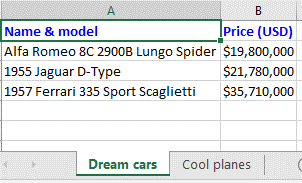
The "Dream cars" worksheet:
Sheet 01

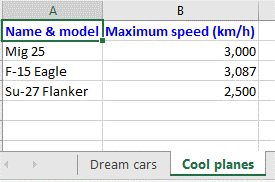
The "Cool planes" worksheet:
Sheet 01

Resolving security alerts by removing an old kernel

While working on an Oracle instance running on a Unix EC2 server, I encountered a recurring security alert indicating that my server was using an outdated kernel version. Despite being up to date with patches, the issue persisted. This blog post outlines the steps I took to address this problem efficiently, allowing me to continue my work without the need for creating a new server.

Identifying the Issue:

To determine the kernel versions installed on my system, I used the command:

rpm -qa | grep kernel

Among the listed versions, I noticed an older kernel, “kernel-uek-5.4.17-2136.319.1.3.el7uek.x86_64,” that was causing the security alert.

Solution Steps:

Switching to Root User:
To make the necessary changes, I switched to the root user using the command:

sudo su root

Removing the Old Kernel:
To remove the outdated kernel version, I utilized the following command:

yum remove kernel-uek-5.4.17-2136.319.1.3.el7uek.x86_64

This command triggered the removal process and displayed the following output:

Loaded plugins: ulninfo
Resolving Dependencies
--> Running transaction check
---> Package kernel-uek.x86_64 0:5.4.17-2136.319.1.3.el7uek will be erased
--> Finished Dependency Resolution

Dependencies Resolved

=====================================================================================================================================================================================================
Package                                     Arch                                    Version                                                       Repository                                   Size
=====================================================================================================================================================================================================
Removing:
kernel-uek                                  x86_64                                  5.4.17-2136.319.1.3.el7uek                                    @ol7_UEKR6                                  115 M

Transaction Summary
=====================================================================================================================================================================================================
Remove  1 Package

Installed size: 115 M
Is this ok [y/N]: y
Downloading packages:
Running transaction check
Running transaction test
Transaction test succeeded
Running transaction
  Erasing    : kernel-uek-5.4.17-2136.319.1.3.el7uek.x86_64                                                                                                                                      1/1
  Verifying  : kernel-uek-5.4.17-2136.319.1.3.el7uek.x86_64                                                                                                                                      1/1

Removed:
  kernel-uek.x86_64 0:5.4.17-2136.319.1.3.el7uek

Complete!

Selectively recovering data in an Aurora PostgreSQL database

Using automated backups and snapshots we can restore an AWS RDS database
– to the most current point in time
– to a prior point in time
– use the restored database going forward
– or restore particular tables

In summary, we have multiple options depending on the nature and extent of the data lost.

In this example, I will demonstrate a method to restore certain rows in one table in the original database.

Create a test table

CREATE TABLE dc_schema.test_table (
                object_id numeric NOT NULL,
                "owner" varchar(128) NULL,
                object_name varchar(128) NULL,
                CONSTRAINT test_table_pk PRIMARY KEY (object_id)
);

and inserted some data. For demonstration purposes, let us assume that the rows with object_id between 30,000 and 40,000 are critical to the application. Further, assume that someone accidentally deleted this data with the following SQL:

select *
from   dc_schema.test_table daac 
where  object_id between 30000 and 40000
;

We now need this data restored as it is critical to the operation of the application.

On the AWS RDS Console page, select the DB cluster, click on “Actions” and then on “Restore to point in time”. On the next page, populate the custom date and time to a point before the data was deleted. Most of the options will be populated except for a few such as the DB instance identifier.

Click on the orange button at the bottom right of the page to begin the recovery. This will take some time to occur.

Some points to keep in mind with respect to the restored database:

– You can use the restored DB instance as soon as its status is available. The DB instance continues to load data in the background. This is known as lazy loading.

– If you access data that hasn’t been loaded yet, the DB instance immediately downloads the requested data from Amazon S3, and then continues loading the rest of the data in the background

– To help mitigate the effects of lazy loading on tables to which you require quick access, you can perform operations that involve full-table scans, such as SELECT *. This allows Amazon RDS to download all of the backed-up table data from S3.

The restore process will create a new instance. While the “restore” is occurring, you can continue to use the original database. To simulate this, I ran a Python program to add another 100,000 rows to the table from which the data was accidentally deleted. The situation of creating keys in the range of the data that was deleted has to be handled by the application staff. In this particular example, I am creating keys higher than the range of keys that were deleted to ensure that there is no primary key collision.

After the restore was completed, I connected to the restored database to check if my data is present. After this was confirmed, I switched back to the original database from where the critical data was deleted and created a link to the recovered database with the following commands:

Create an extension:

CREATE EXTENSION dblink;

Create a dblink:

SELECT dblink_connect
(
  'link_to_recovery’, 
  'dbname=clientdb 
   port=5432  
   host= red-recovery-cluster…….rds.amazonaws.com 
   user=dbadmin
   password=password_here'
);

Execute the following SQL to select the data from the recovered database and insert it into the original database:

insert
into    dc_schema.test_table
SELECT  * 
from    dblink
(
'link_to_recovery', 
'SELECT object_id, owner, object_name 
 FROM   dc_schema.test_table 
 where  object_id between 30000 and 40000'
)
AS 
p(object_id numeric, owner varchar(128), object_name varchar(128))
;

Assuming that you have recovered all the data that was accidentally deleted, you can drop the recovered database. I will do this via AWS CLI commands running in CloudShell.

First, we delete the instance created under the cluster with the command:

aws rds delete-db-instance \
  --db-instance-identifier red-recovery-cluster \
  --skip-final-snapshot \
  --delete-automated-backups

After the instance is deleted, I deleted the cluster with the following command:

aws rds delete-db-cluster \
  --db-cluster-identifier red-recovery-cluster \
  --skip-final-snapshot

Please note that the above commands delete the database along with automated backups and without a final snapshot.

CloudWatch alarms

One of the methods to be alerted on an issue with one of your AWS resources is to use a CloudWatch alert that will send an email (or page) to a subscriber. One issue with this approach is that “An alarm invokes actions only when the alarm changes state.”. This is documented at

Using Amazon CloudWatch alarms

In other words, you will receive one email or page when the event occurs. As an example, if you have an alert that is based on the CPU utilization of the database exceeding a certain threshold, the alert will be sent out once when the database first breaches the threshold. If you have a requirement to be paged every (for example) five minutes while the issue continues, you will need to develop some other methodology. One of the suggestions is to use a combination of services such as Eventbridge and Lambda to keep checking the alarm state.

As an option for DBAs used to handling alerts via scripting, I created a small script (see below) that can be executed via cron on an EC2 server that will monitor the CloudWatch alarm status and keep paging while the alarm is occurring.

#!/bin/bash

#
## alarms that are to be checked
#
alarm_names=("mydb-CPUUtilizationAlarm" "mydb-FreeLocalStorageAlarm")

#
## write out a file header
#
echo 'Report on CloudWatch alarms' > alarm_status.txt
echo 'Executed at ' `date` >> alarm_status.txt
echo ' ' >> alarm_status.txt
printf "%-50s %-10s\n" "Alarm Name" "Status" >> alarm_status.txt
pager_flag='n'

#
## get the status of each alarm
#
for cur_value in "${alarm_names[@]}"
do
    alarm_status=`aws cloudwatch describe-alarms --alarm-names "$cur_value" --output="json" | grep -iE '"StateValue"' | sed 's/StateValue\|"\|\':'\|','//g'`
      alarm_status=$(echo "$alarm_status" | tr -d ' ')
      if  [ "$alarm_status" == "ALARM" ]; then
          pager_flag='y'
      fi
      printf "%-50s %-5s\n" "$cur_value" "$alarm_status" >> alarm_status.txt
done

#
## mail to the appropriate person/team
# 
mail -s "CloudWatch alarm status" dba-group@company.com < alarm_status.txt

#
## check if a page out is required
#
if  [ $pager_flag == 'y' ]; then
    mail -s "CloudWatch alarm status - Alarm detected" dba-pager@company.com < alarm_status.txt
fi
142
51
73
77